 by CEF
 Administration · Chapter 9
Licensing
The Stream Gateway is licensed software. Each device needs an active license key to operate.
How the license works
A license is bought on the Pricing page (30-day demo, Prime, or Enterprise monthly, yearly or perpetual). After payment, CEF's platform e-mails you a key of the form SRTG-XXXX-XXXX-XXXX-XXXX and creates your panel account with the e-mail address used at checkout. A key is valid for one device: once activated, it binds permanently to that device and cannot be moved to another. The device checks its license with CEF's platform periodically, so it needs Internet access.
Activating the device
- Install the product (chapter 7) and open its local console at
http://device-IP-address:3000(chapter 8). - Open Activate this device.
- Enter the key from the e-mail and confirm. The device registers and starts delivering.
Activate within 30 days of purchase: a subscription's month or year starts on the day of activation, and a perpetual license receives the version available on that day. The deadlines, and what happens if you do not activate, are in the Delivery Policy.
What happens without a license
A device without an active key does not register and delivers no signal. If a licensing notice appears, check that the key was entered correctly and that the device has Internet access; if it persists, write to us with the key and the device name.
The system installer needs no passwords or keys. The license is the sole authorisation: it protects use of the system without getting in the way of installation.
Your panel: all your devices in one place
Every device activated with one of your keys appears in your panel account, next to your licenses. From there you see the status of each device, control its streams and configure it without entering each one separately, even from outside its local network.
The local console (http://device-IP-address:3000) runs on each device and is where the key is activated. The panel (panel.stream-gateway.com) is your account on the Internet: it gathers every device and every license you own.
Accessing the panel
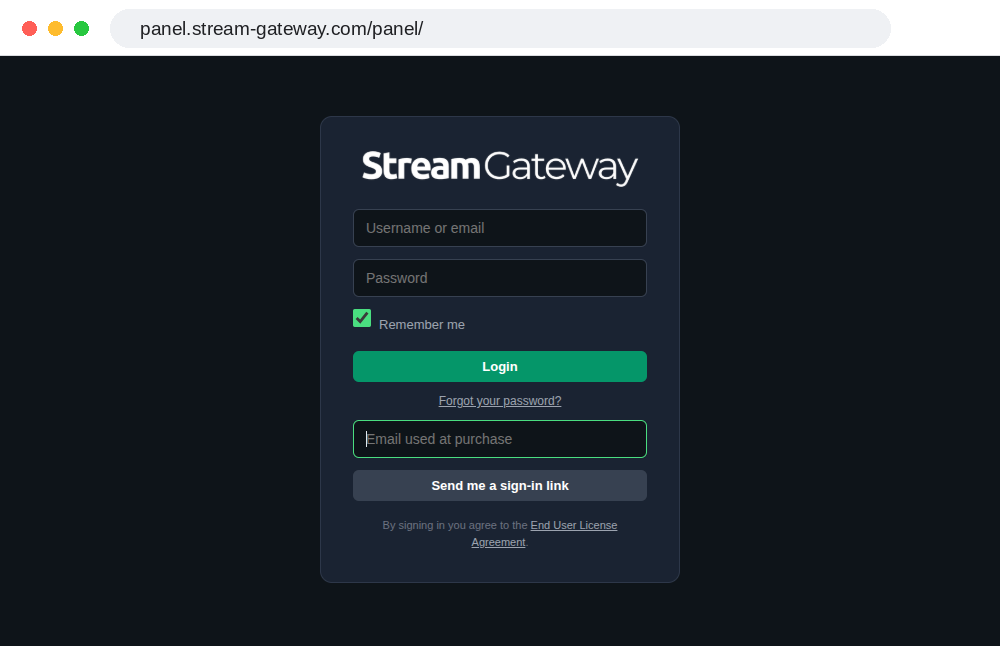
Open in the browser:
https://panel.stream-gateway.com/panel/
Sign in with the e-mail address used at purchase and the password you set when the account was created (chapter 2). If you forget it, press Forgot your password? to receive a sign-in link by e-mail.
Overview
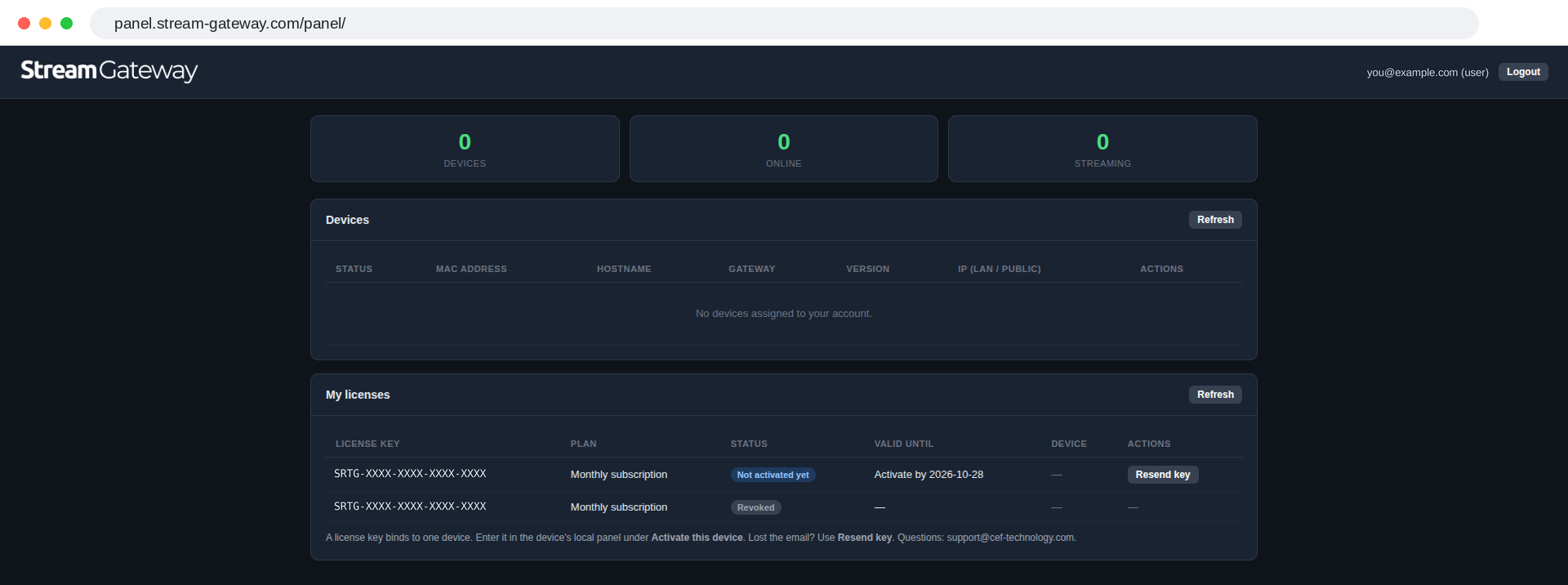
Once inside, you see three counters (how many devices you have, how many are online and how many are streaming), the list of your devices with their status, MAC address, name, version and IP address, and My licenses with each key, its plan and its status.
Device detail and actions
Press View on a device to see its full detail and control it. From the detail you can:
- Start / Stop / Restart Streams: remote stream control.
- Restart Gateway: restarts the device service.
- Update Firmware: updates the device system to the latest version.
- Reboot Device: restarts the whole device.
- SRT Config / Individual Sources / UDP Output: opens the same dialogs as the device's local interface, but from the central panel.
